I really used to some older versions of 3d studio max - it was less bloated, compared to later versions and using it just for polygon modelling not very complex stuff today is might be sufficient, considering it hasn't changed that much. But most of these programs back in the day doesn't have dark themes, or they worked not as indented by today standards. And 3dsmax 2009 is one of these cases: while the dark theme is included with the program by default (you just need to activate it in settings), some other aspects of Windows 10 GUI may look distracting as they can't adopt to the program's interface.
What you need to change here is two elements of the UI: "Title bar" and "Menu bar". And while you try google for them, the only results will popup are about changing "Title bar". It is not that hard and can be done through regedit: https://www.reddit.com/r/Windows10/comments/3syvdw/comment/cx20itk/ or via some programs like Windhawk or Winaero.
Post from Reddit by BatDogOnBatMobile:
Disable Show colour on Start, action center and title bar from Settings App.

Goto HKEY_CURRENT_USER\SOFTWARE\Microsoft\Windows\DWM and set ColorPrevalence to 1 and AccentColor to 171717.

Optionally, create new -> DWORD (32-bit), name it AccentColorInactive (credits) and set it to 444444 to have coloured inactive titlebar too.

All the numbers are hex codes that you can change according to your taste.
Also you can make a .reg file out of it:
Windows Registry Editor Version 5.00

[HKEY_CURRENT_USER\SOFTWARE\Microsoft\Windows\DWM]
"ColorPrevalence"=dword:00000001
"AccentColor"=dword:171717
"AccentColorInactive"=dword:444444
You must re-apply it every time you change your "customization" options in Windows.
But changing "Menu bar" (this is the thing with all "File Edit Format etc." drop-down scrolls) isn't that easy and require tools like msstyleEditor and Windows style builder - the second one is payed, but you can get older version here: https://vsthemes.org/en/software/16338-windows-style-builder.html Keep in mind version provided on this website was originally made for Windows 7 and was updated to work with 8.1, so except crashes. In my case it has even managed to corrupt some theme files, so be careful... and make backups. I think it is totally possible to complete this just with msstyleEditor, but I've used both to achieve my goal.
Also, you might need to install some sort of "UX theme patcher". I used this one: https://github.com/namazso/SecureUxTheme but it doesn't work correctly with certain themes (there will be white rectangles in "Control Panel", "Programs and Features" and some installers as well).
IMPORTANT NOTE! Image numbers and variable names may differ from yours, depending on what version of Windows 10 you are using! Mine is 22H2, so this guide might not work for you.
So, themes are stored in .msstyles files which are located in *WINDOWS FOLDER*\Resources\Themes\*THEME NAME*, i.e. something like C:\Windows\Resources\Themes\aero, although do not touch the original one and rather work with a copy.
Open it in Windows style builder and go to Lists, Menus & Tabs -> Menu -> BarBackground. There should be a picture, 3x50 pixels. It might be IMAGE #1272 or IMAGE #1106 - idk honestly what it depends on: probably different themes have different picture numbers, I am not sure.
Export this and repaint in any program you like. Then reimport it again.
Since we presumably painted our Menu bar in some dark color, you probably need to change the font color as well.
Go to Lists, Menus & Tabs -> Menu -> BarItem. There is should be variable TEXTCOLOR in the table on the right - this is the color of text when window is active and mouse pointer isn't touching it, i.e. "idle state".
There is also color for each text condition under a BarItem scroll: Normal - initial state (empty, can be edited above), Hot - when mouse is over and Pushed - when user has clicked on it.
The last part you might not know about: there is also some sort of an underline, one pixel height right under the menu bar, that stored in just one RGB value. You might also want to change it. Search for sysmetrics, or go to Fonts, Colors & System Metrics -> Fonts & System Metrics, then look for variable MENU to the right. Some programs, like Photoshop, are using this variable as a drop-down scroll background color, so you might also want to change variable MENUTEXT as well.
You can test edited theme realtime by pressing "Test" in top left corner. Don't forget to save it as well!
The final result:
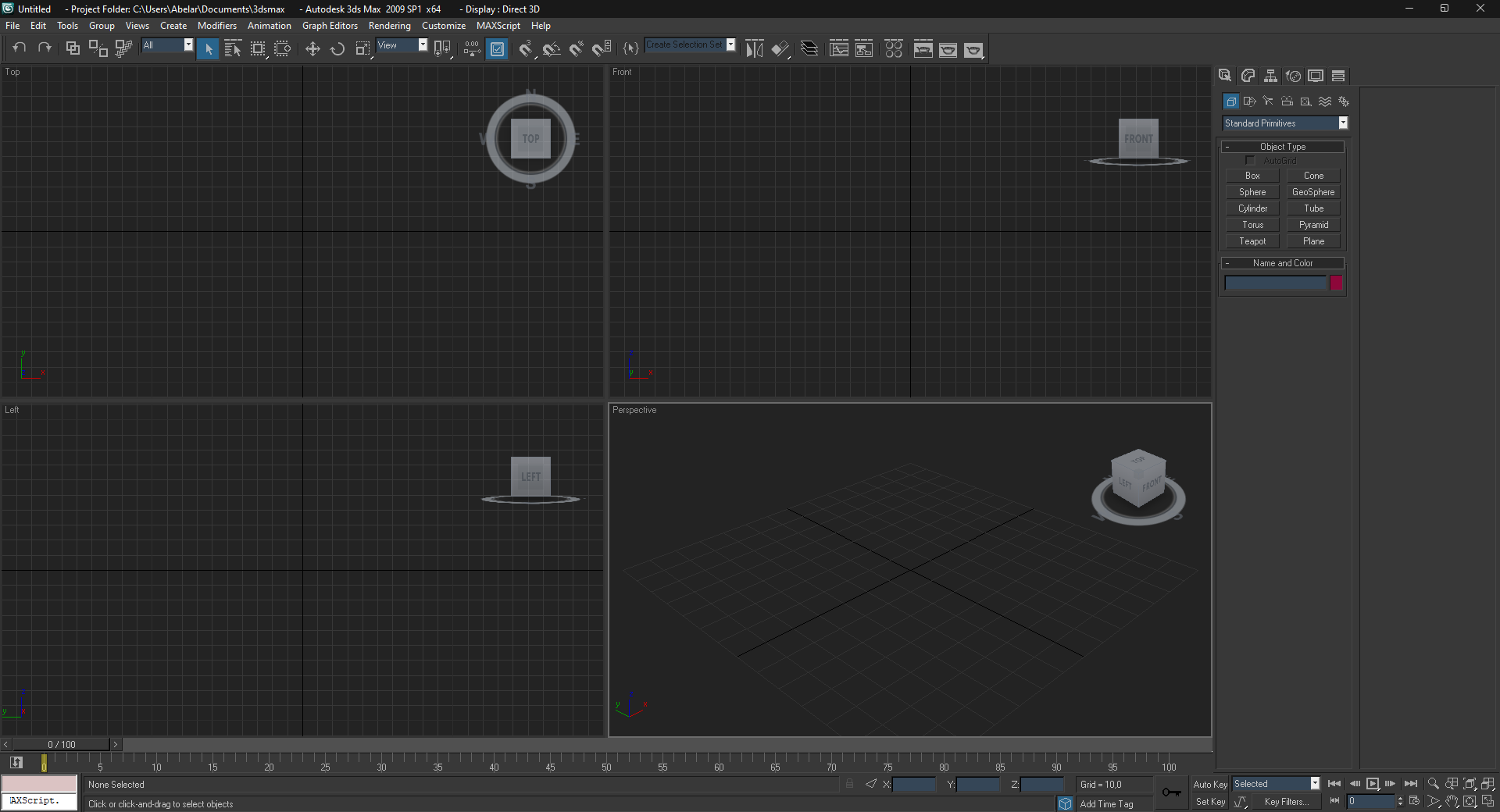
I've downloaded and edited a custom Windows 10 theme for this, but the editing process should be pretty much the same for the original. To chose a dark theme in 3ds max go to Customize -> Custom UI and Defaults Switcher and chose ame-dark.