Sometimes while downloading RPGM games from itch.io and other resources, you may stumble upon a situation like this:
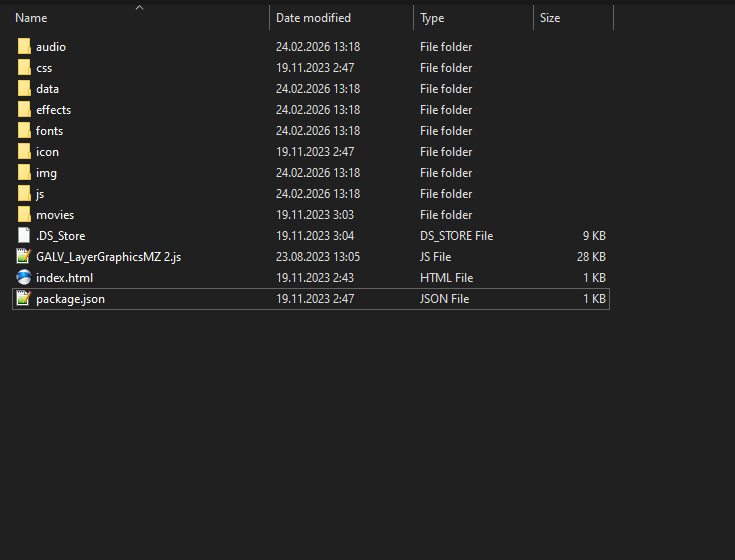
I took this game as an example: https://error-2018.itch.io/nurikabe
While there is no exe in a zip file, and if all the game resources is there, it is totally possible to run such game locally. What we are missing here is basically a some sort a primitive web browser (most often is some sort of chromium-like), that runs all the scripts. RPGM MV/MZ engines are web apps, like Discord for example, and it is only required a browser to run. There is should always be an index.html page in the archive, which is only function is to refer to main.js file. If there is no index page, you can write it yourself or take it from donor.
And if you try to just open it straight forward by double clicking, you'll get a error telling you that your browser is restricted from opening local files. There is basically two ways, maybe three, you can resolve this issue.
First method, and the most safest, is to install http-server module (or whatever it's called) for Node.js through npm. So, this may be a rather complicated way for most of the people, who never dealed with web development, like myself included, but if you need just run games on your Windows system locally, there is no need in any of version or package managers: like nvm or chocolatey.
Just download NodeJS from official site: https://nodejs.org/en/download/current Select the latest version and click .msi package. Then install it on your PC, there is npm included in the installer itself already.
Next we need follow the install instructions there: https://www.npmjs.com/package/http-server Because we want to run http-server from ANY folder in our system we need to use this command:
npm install --global http-server
Open your "command prompt" as admin and copy-paste it there (you can found it by pressing Start button and typing "cmd"). It will create a necessary environment variable, so we can automate the process of starting a local server a little by creating a small bat file:
start http-server
start http://127.0.0.1:8080
It should be copied in the game folder, next to the index.html. Note that for MV you need to run server from WWW folder, i.e. bat file should be copied there. You can also modify it to run your browser of choice:
start http-server
"*PATH_TO_THE_BROWSER*" "http://127.0.0.1:8080"
Replace *PATH_TO_THE_BROWSER* with the location of your browser .exe file (C:\firefox\firefox.exe or whatever). Now you can run bat file and play the game.
There is also another method, which is much simpler but not very secure. I cannot get it to work properly anyway, nor I recommend you to use it. So, DO IT AT YOUR OWN RISK!
You can allow your browser to open local files. That's it. For Firefox you need to open about:config and search for
security.fileuri.strict_origin_policy
Then set it to false. For Chrome you will need to add this to shortcut:
--allow-file-access-from-files
If you are decided to use this method AT LEAST make a dedicated shortcut only to run local files and do not open any Internet pages in the same window whatsoever. Probably, it is even better to make just another profile with no internet access at all. Firefox has "Offline mode" that can be permanently turned on with --offline shortcut command and for Chrome it is probably can be achieved via some third-party plugins.
There is also a plugin called "Windowed - floating Youtube/every website", available both for Chrome and Firefox, that makes your browser window look like a popup. I.e. like a game or any other application window - with no searchbox and tabs.